AI auto-ballooning: how CadNexa detects 100+ dimensions on an engineering drawing in under a minute
If you have ever ballooned a dense engineering drawing for a First Article Inspection report, you know the rhythm: click a dimension, type the number, click the next dimension, type the number. For 80, 100, sometimes 140 dimensions on a single sheet. Plus the GD&T frames, plus the hole specs, plus the radius callouts. Two to four hours of nothing but mouse-clicks and number entry — every time a new part lands on your desk.
CadNexa's AI auto-ballooning feature collapses that into one click. Open the PDF. Tap ✨ Auto-detect. Watch the balloons land on every dimension. Review, adjust if needed, ship the FAI report. Total time on a two-page intake manifold drawing: well under a minute.
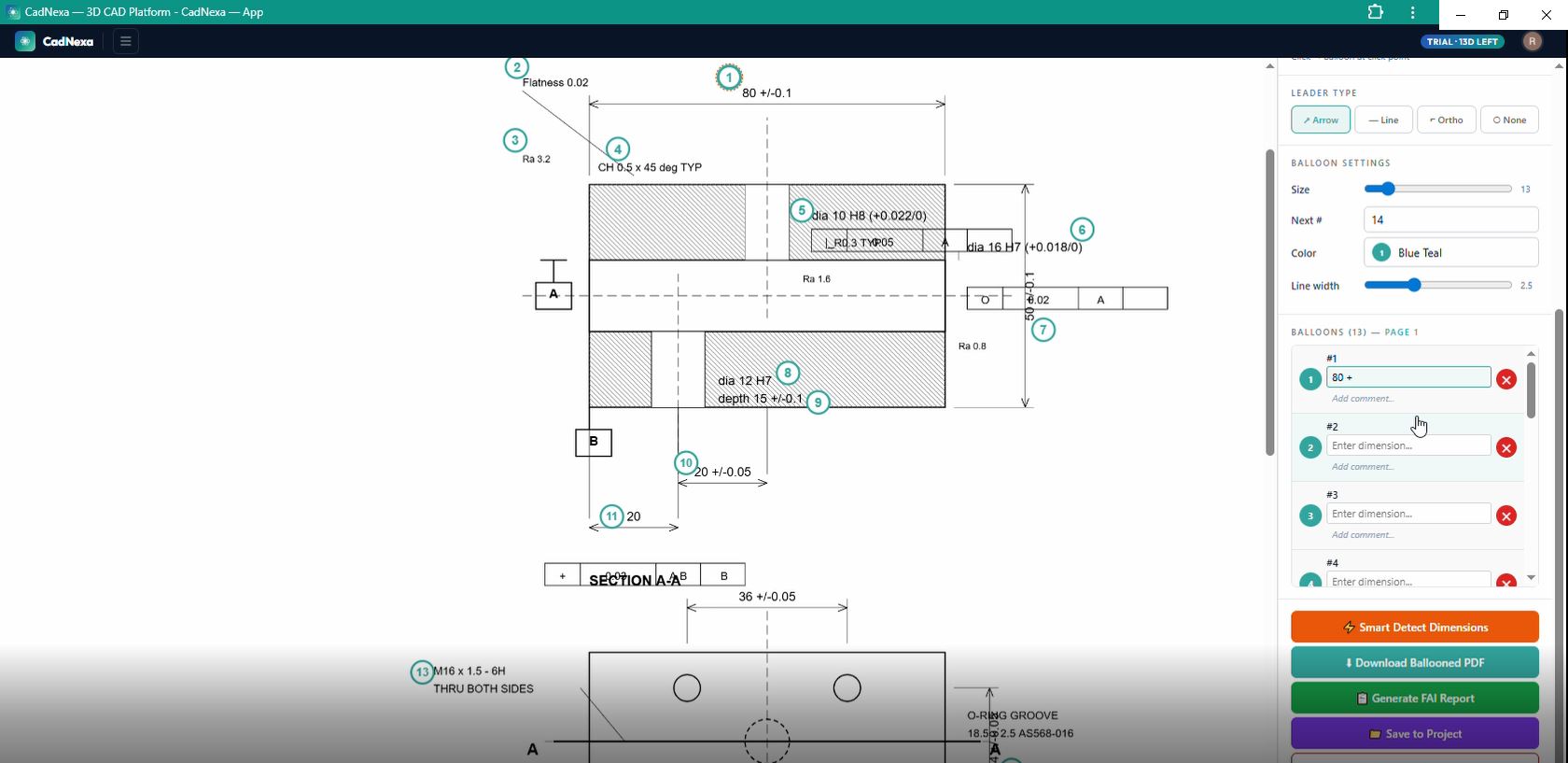
What auto-ballooning actually does
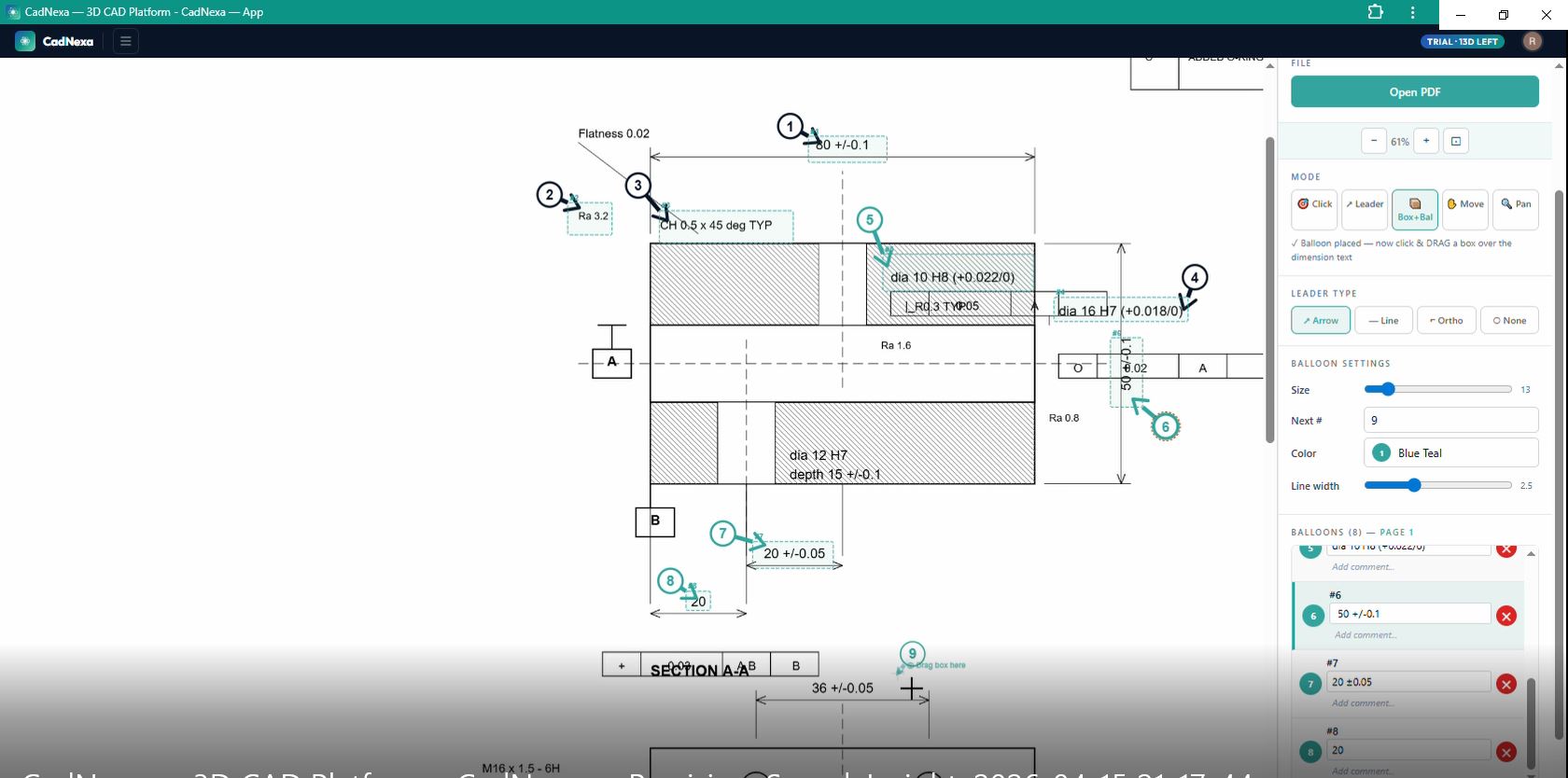
Traditional ballooning software makes you click each dimension manually. Even the better tools that "read" your PDF still require you to drag a box around every single dimension. CadNexa's auto-ballooning is genuinely different — you don't draw anything. The AI scans the entire drawing, finds every inspectable feature, and places a numbered balloon next to each one in proper reading order.
What "every inspectable feature" includes:
- Linear dimensions (
348.7,120 ±0.2,R7.5) - Diameters and radii (
Ø12.05,R25 TYP) - Angular dimensions (
60°,120° ±1°) - Tolerance frames including GD&T (
⊕ 0.4 A|B,⊥ 0.1 D,√ 0.2) - Hole and thread callouts (
2-HOLES DRILL Ø6.8 ∇25,TAP M8×1.25 ∇22) - Chamfers, surface finish symbols, datum identifiers
- Vertical and angular text the OCR usually misses
What it explicitly does NOT balloon:
- Title block content (drawing number, company name, sheet info)
- Notes and instructions ("DO NOT SCALE", "REMOVE ALL BURRS")
- Revision history and amendment columns
- Section view markers ("SECTION A-A", "DETAIL B")
- Tolerance tables and surface roughness legends
How the AI actually works (without the buzzwords)
There is no single magic model behind auto-ballooning. Real engineering drawings are too messy for that. CadNexa uses a three-layer pipeline, with each layer correcting the others' mistakes:
Layer 1 — Text extraction (the eyes)
Vector PDFs (exported from SolidWorks, Creo, Inventor, AutoCAD) have embedded text that we read directly with PDF.js — zero AI cost, near-instant. Scanned PDFs (photographed shop floor prints, old drawings) go through RapidOCR, a fast open-source vision model that runs in our cloud. We also run a 6-tile zoom pass to catch the tiny text along leader lines and around hole callouts that the full-page OCR misses.
Layer 2 — Grouping (the brain)
OCR returns hundreds of disconnected text fragments. "70.3", "±0.2", "Ø6.8", "TYP", "0.4", "A", "B" — they all sit in a list with pixel coordinates. The grouping AI (Claude Haiku) looks at the rendered drawing image PLUS the token list and decides which tokens belong together as one inspectable feature. 70.3 + ±0.2 become one dimension. Ø6.8 ∇25 + TAP M8×1.25 become one compound hole spec.
Layer 3 — Refinement (the engineer)
This is where most ballooning tools fail and we put most of our work. Every group goes through a pixel-density check (the box should hug the ink, not float over empty space), an over-merge splitter (the AI sometimes groups two adjacent dimensions as one — we split them at the empty pixels between them), a non-dim filter (drop anything that looks like a note, a date, a part number), and a balloon collision avoider (balloon circles never overlap each other or hide another dimension's box).
Real numbers from real drawings
We test auto-ballooning on actual customer drawings every day. Here is what the timing looks like on a typical 2-page A1 intake manifold drawing with 136 dimensions:
| Phase | Time | What's happening |
|---|---|---|
| Drawing upload + render | ~1 s | PDF parsed, both pages rendered to canvas |
| OCR (both pages parallel) | ~25-30 s | Full-page + 6-tile zoom pass per page |
| AI grouping (both pages parallel) | ~10 s | Claude reads image + tokens, returns groups |
| Box formation + balloon placement | ~4 s | Pixel-trim, splitter, dedup, collision avoidance |
| Total | ~40 s | 136 balloons placed, ready to review |
For comparison, ballooning the same drawing manually takes a quality engineer between 3 and 5 hours, even with shortcuts. The math is brutal:
Click-by-click
One click
What makes engineering drawings hard for AI
"Why doesn't ChatGPT just do this?" is a fair question. The short answer: engineering drawings are visually unlike anything in a general-purpose model's training data. Specifically:
- Dense layout. A single A1 drawing can have 200+ pieces of text packed in. Three views, two detail enlargements, section cuts, notes, a title block, a revision table — all on one sheet. General OCR models trained on documents and receipts smear the text together.
- Rotated text. Vertical dimensions like
75.5sitting sideways next to a 90° leader, or angular text following the curve of a fillet. Standard OCR reads left-to-right horizontal only. - Compound features. A single inspectable hole might be specified across 4 lines:
2-HOLES DRILL Ø6.8 ∇25 / TAP M8×1.25 ∇22 (HELICOIL) / ∨Ø8×45° CH / ⊕ 0.4 A|B. That is ONE feature in inspection terms but 8+ tokens in OCR terms. Wrong grouping means wrong FAI report. - Specialised symbols. Engineering text uses ⊕ ⊥ ⌖ ∥ Ø ∇ — symbols that don't appear in OCR engines' standard character sets. They come back as "0", "T", "I", or get dropped entirely.
- Density variation. A title block has tiny dense text; a chamfer callout has one big symbol. The same model has to handle both.
CadNexa handles all five with the three-layer pipeline above. The first generation worked on 60% of drawings; today it's at 95%+ across the engineering drawing types we see most often — castings, forgings, machined parts, sheet metal, and weldments.
Using auto-ballooning step by step
1. Open the drawing
Sign in at cadnexa.com, click Balloon Tool, and open your PDF. Both vector and scanned PDFs work, single-page or multi-page. Files stay on your machine — nothing is uploaded permanently.
2. Click ✨ Auto-detect
The button is in the top toolbar. You'll see a live timer counting up and a status line telling you what's happening: "OCR for 2 pages…", "AI grouping…", "Placing 134 balloons…".
3. Review and refine
When detection finishes, every balloon is already placed and numbered. The side panel lists each balloon with its dimension value. Scroll through the list and:
- Tap any balloon to highlight it on the drawing
- Drag a balloon to reposition if needed
- Edit the dimension text if OCR misread a value
- Delete obviously wrong balloons (the auto-detect is conservative — false positives are rare)
- Add manually via Click mode if you spot a dimension the AI missed
4. Generate the FAI report
Tap 📋 Generate FAI Report. Pick your standard — AS9102 Rev C, PPAP, ISO, ASME, DIN, JIS, GB, or IS. The report opens with every balloon already mapped to a row, with nominal value, tolerance, and dimension type pre-populated. You enter the actual measured values and pass/fail status. Download as PDF, HTML, or CSV.
Try AI auto-ballooning on your next drawing — free
No installation, no demo call. Open a PDF, click Auto-detect, watch the balloons land.
Open the Balloon Tool — Free →When auto-ballooning isn't enough
For very specialised drawings — exotic GD&T stacks, low-resolution faxed drawings, hand-drawn sketches, or text in a language other than English — the AI will get most balloons right but may miss 5-15%. That's where the manual modes come in. Click mode and Leader mode let you fill in anything auto-detect misses, with the balloon numbering continuing seamlessly from where the AI left off. No tool is 100% for every drawing in every industry — but the gap between "100% manual" and "manual fill-in of the last 10%" is the difference between a 4-hour task and a 5-minute review.
Privacy and security
Frequently asked questions
Does auto-ballooning work on scanned PDFs?
Yes. Scanned drawings go through RapidOCR which handles photographed, scanned, and faxed PDFs at full quality. Older drawings with faded text may have a few more misses than crisp vector PDFs, but the workflow is the same.
What if the AI misses a dimension?
Use Click mode or Leader mode to add it manually. The balloon will get the next available number, and your FAI report will include it automatically. The side panel makes it obvious where there are gaps.
How accurate is the dimension text?
On vector PDFs, ~99% — the text is read directly from the PDF's text layer. On scanned PDFs, ~92-95% — OCR can occasionally misread a "5" as a "6" or drop a leading minus sign on a tolerance. You catch and correct these during the side-panel review pass.
Does the AI handle multi-page drawings?
Yes. Both pages are processed in parallel. Balloon numbering continues across pages — page 1 might have balloons 1-80, page 2 continues from 81. The FAI report combines them into one inspection document.
Can I download the ballooned PDF?
Yes. Tap ⬇ Download PDF in the top toolbar. The output is a clean PDF with the original drawing plus the numbered balloons rendered on top — exactly what you'd hand to your inspector or attach to a FAIR package.
How much does it cost?
The free tier handles small drawings (up to 5 balloons per page) at no charge. Paid plans start at ₹399/month for unlimited auto-ballooning across all your drawings, all FAI standards, and cloud project storage. Cancel anytime.
Free up 4 hours per drawing. Starting today.
Quality engineers in 40+ countries use CadNexa to ship FAI reports faster.
Try Auto-Ballooning — Free →